Create Your Parent Media Account & Link Your Dancer
Create and verify your Parent Media Account, then securely link your dancer to access their Inspire photos and videos.
You need an Access Code from your Studio Director to link your dancer. If you do not have it, contact your studio. Already have a Parent Media Account? Sign in and jump to Step 6.
Open Parent Media Site
Create Your Account
Select a step to expand its instructions and screenshot.
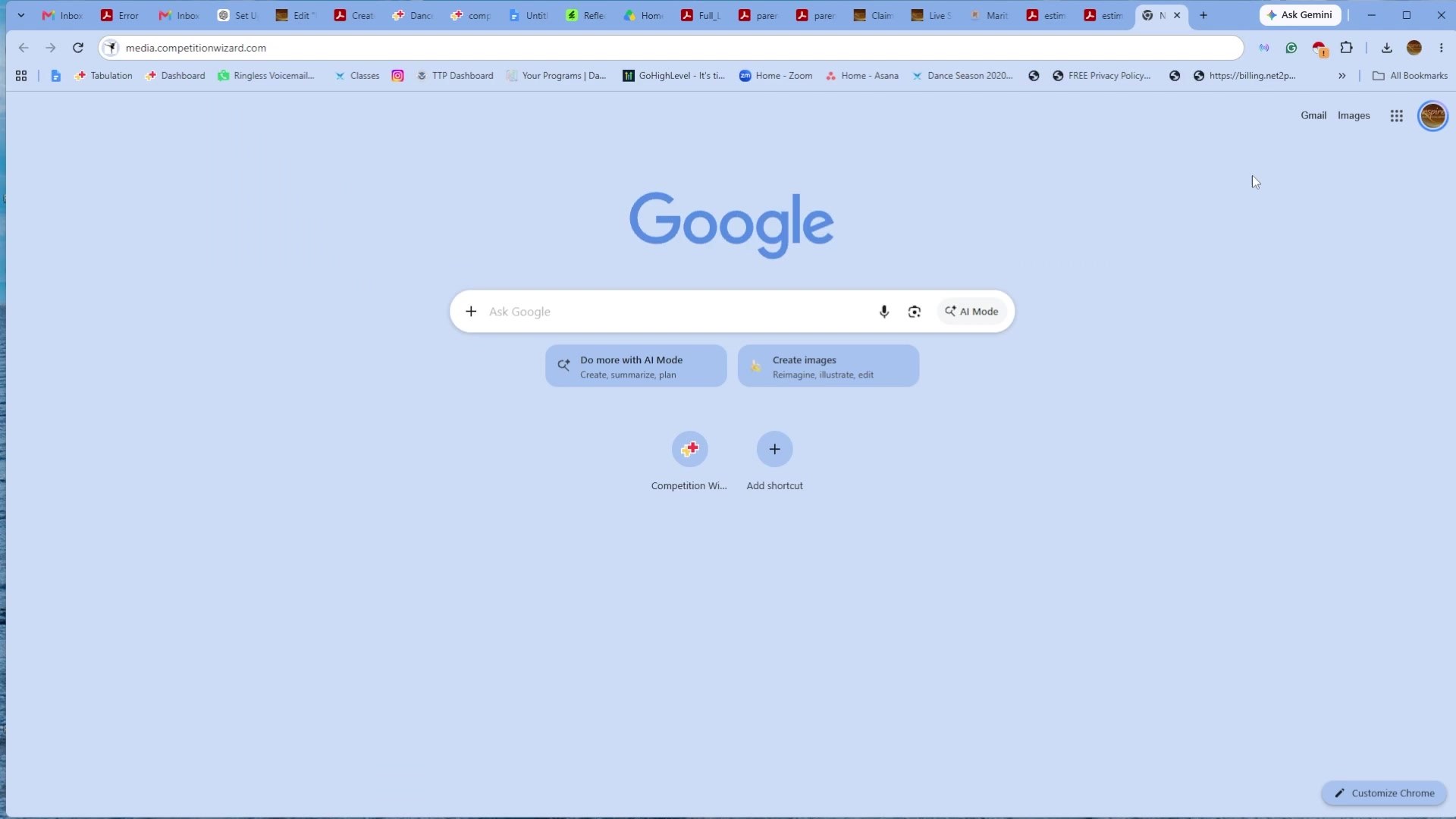
STEP 1 Go to the Parent Media Site
Open media.competitionwizard.com in your browser. This is the Competition Wizard media site for accessing your dancer's Inspire photos and videos.
STEP 2 Register Your Parent Media Account
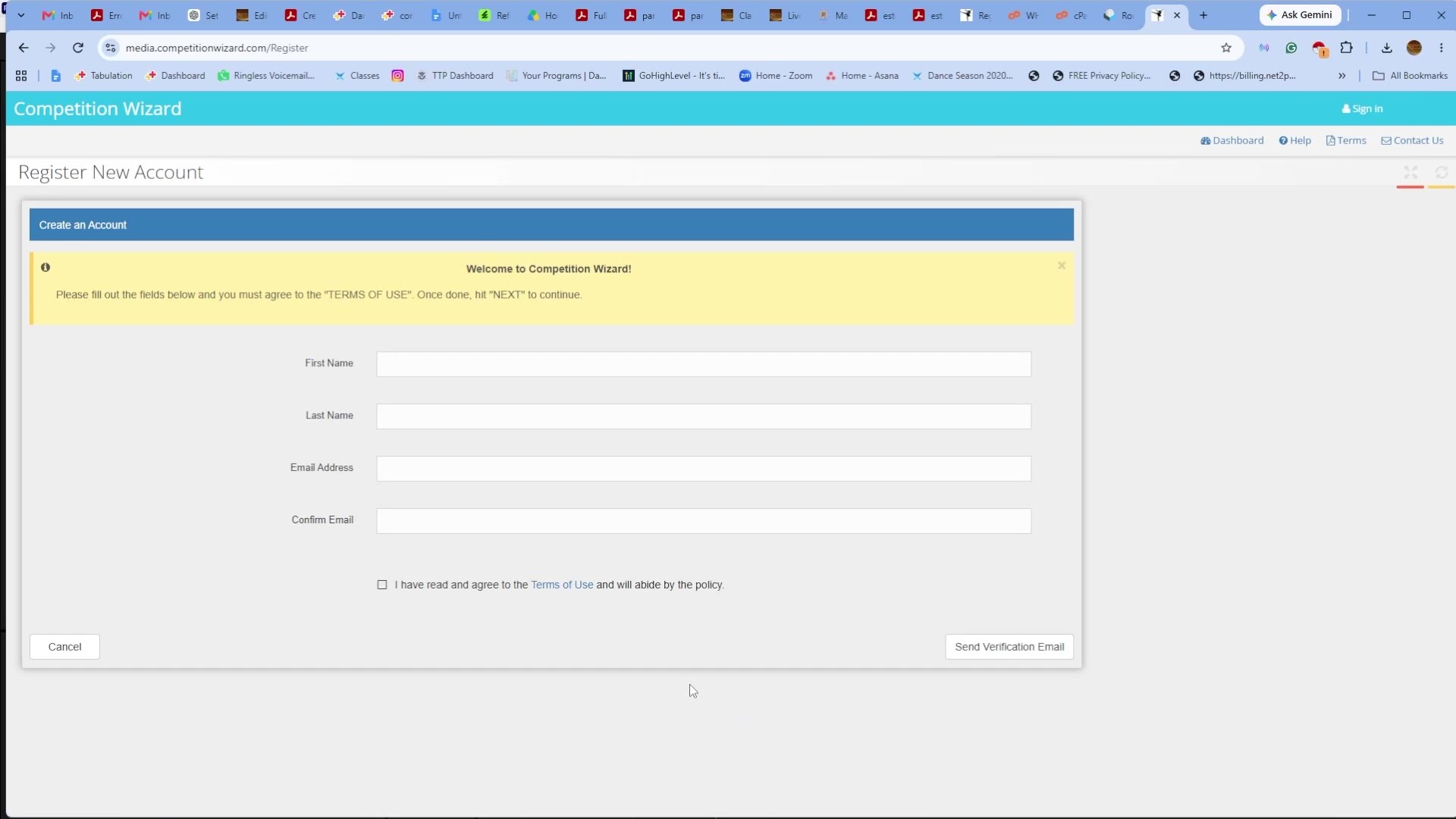
Select Register Here. Enter your first name, last name, and email address. Confirm your email address, review and accept the Terms of Use, then select Send Verification Email.
STEP 3 Verify Your Email Address
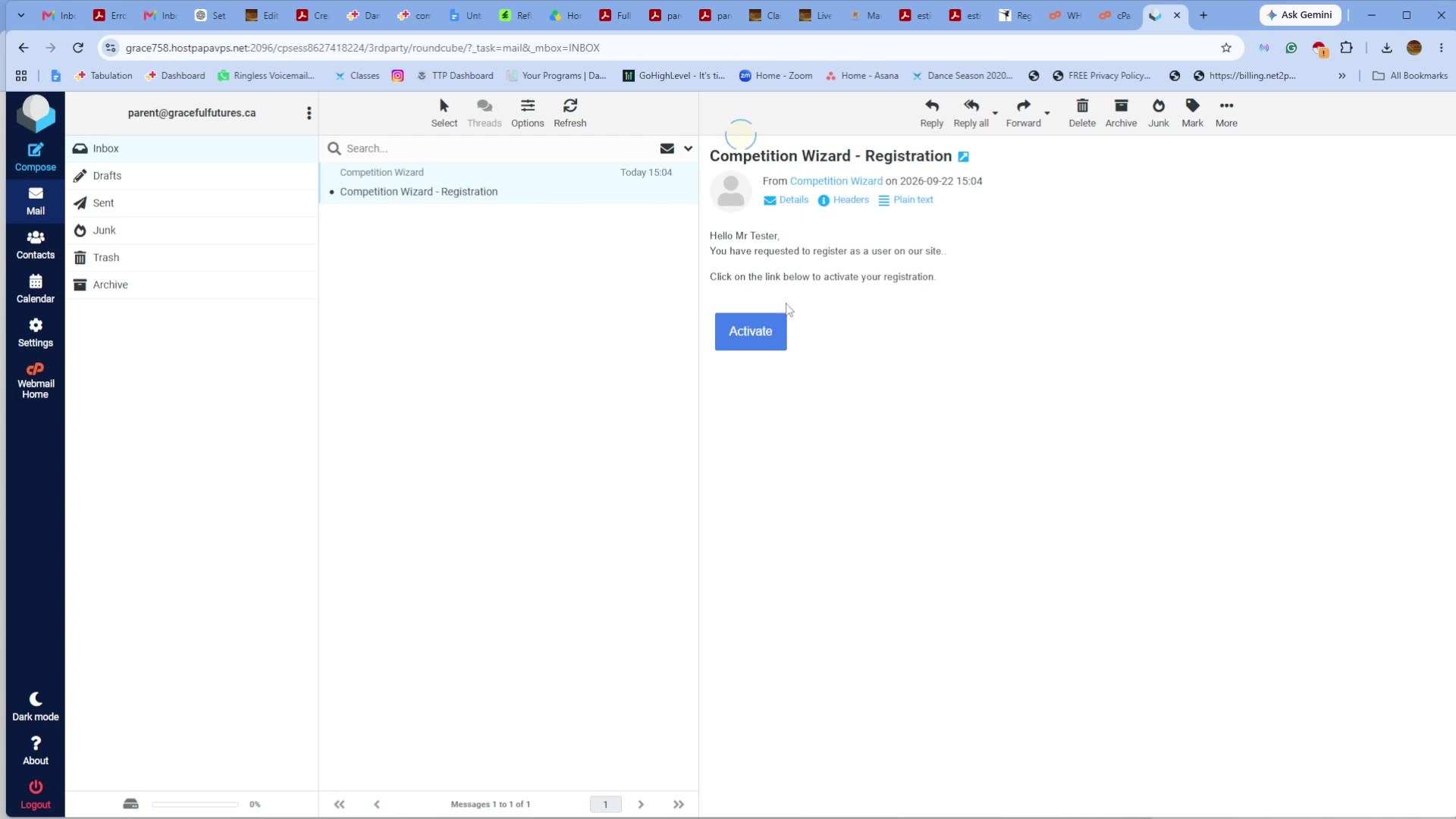
Competition Wizard sends a verification message to the email address you provided. Open that email and select Activate.
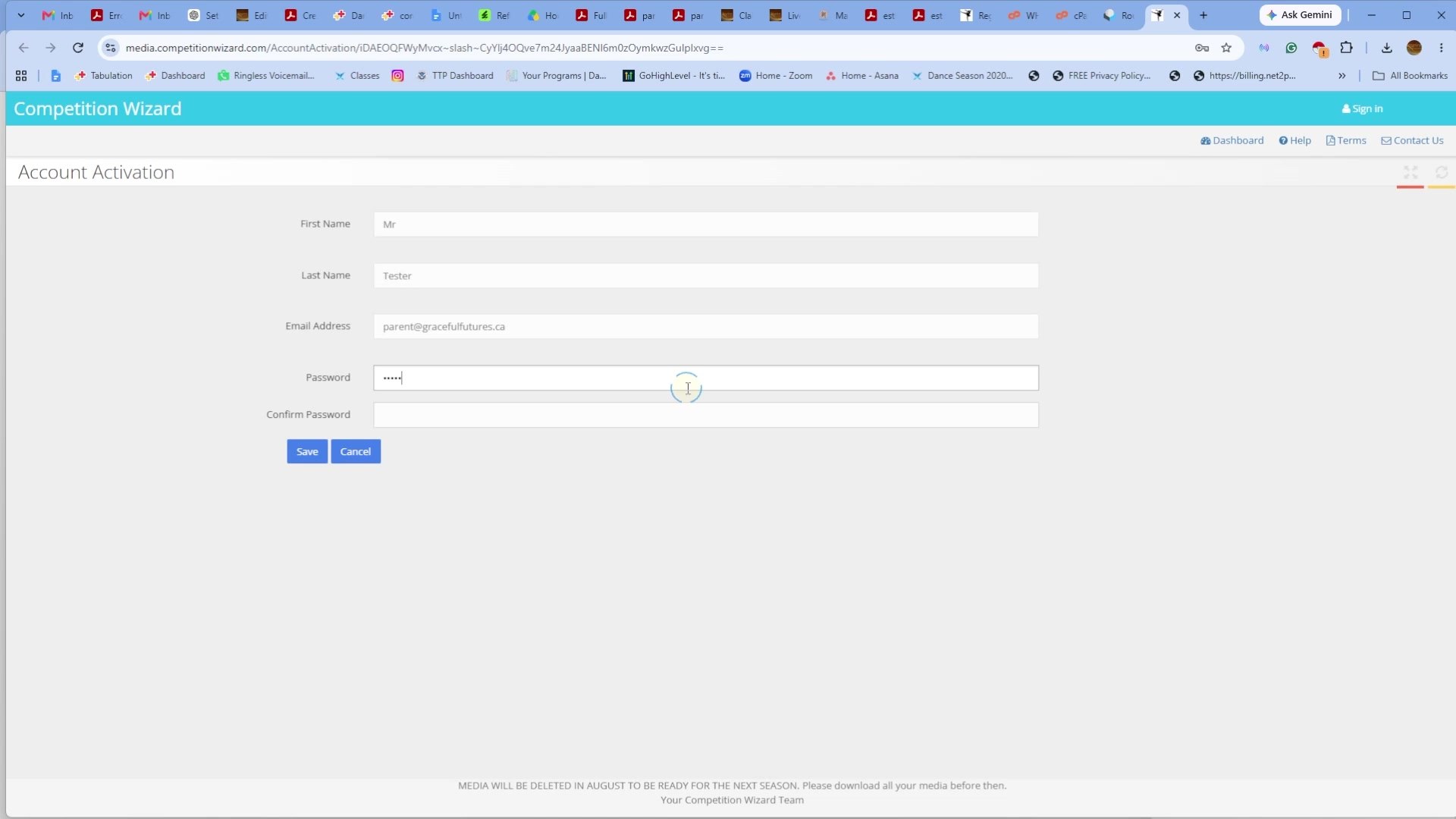
STEP 4 Create Your Password
Follow the activation link, then create and confirm your password to complete your Parent Media Account. You will use this password and your email address to sign in.
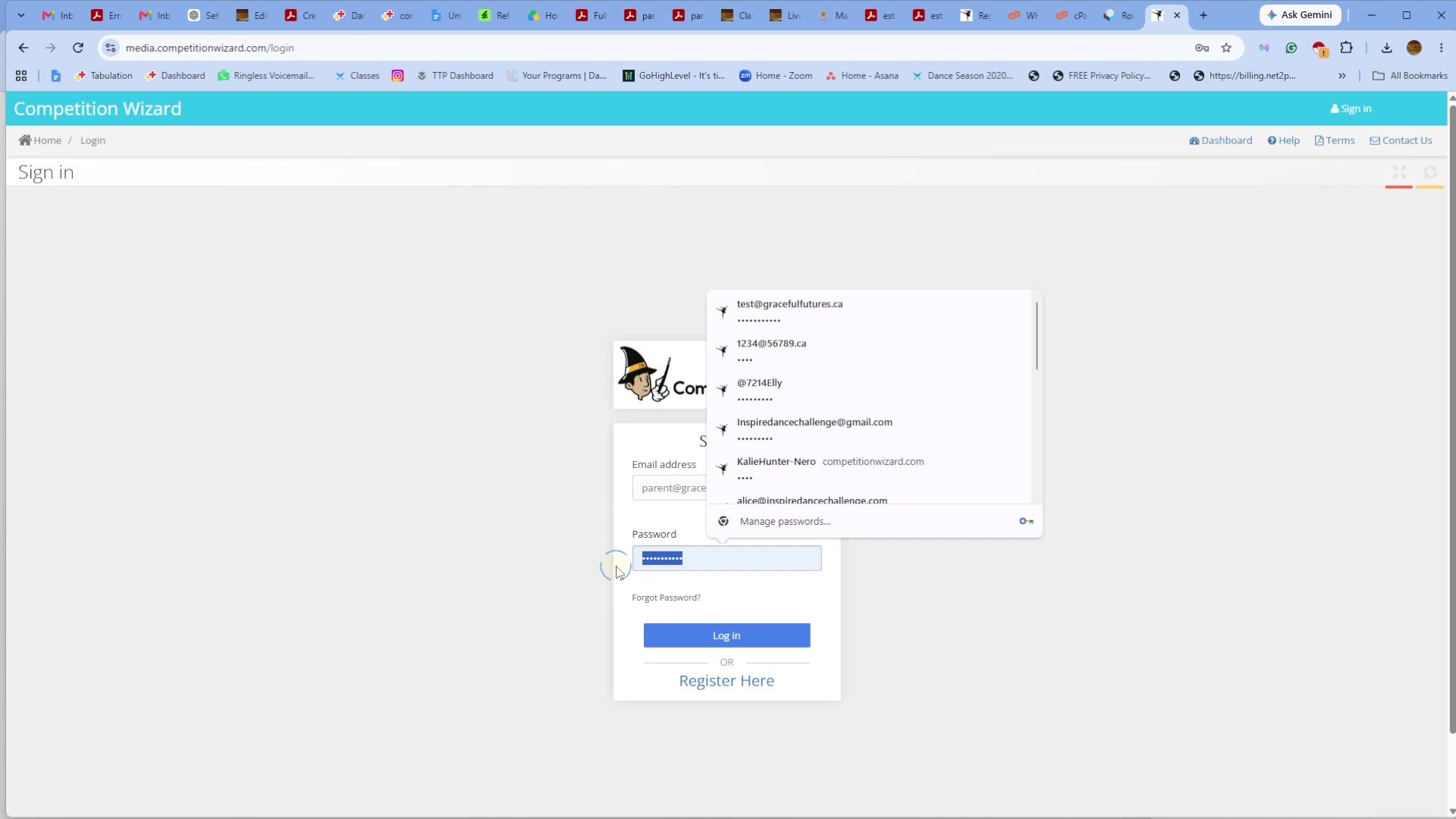
STEP 5 Sign In to Your Account
Return to media.competitionwizard.com and sign in using your email address and password.
Link Your Dancer
Have your Studio Access Code and your dancer's registration information ready.
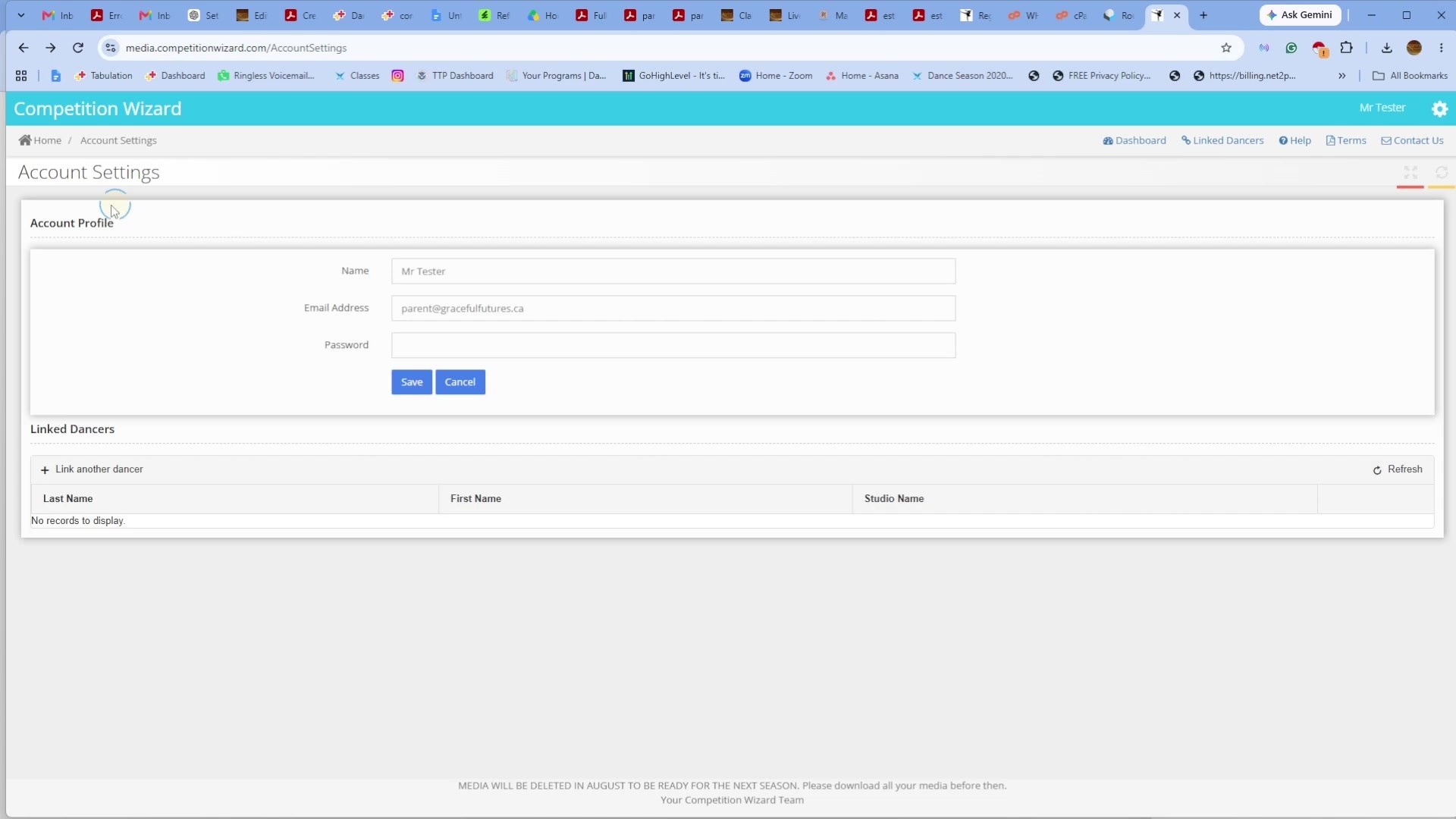
STEP 6 Select Link Dancer
Once signed in, open Account Settings. Under Linked Dancers, select Link Dancer.
STEP 7 Enter Your Dancer's Information
Your dancer's information must match exactly what your Studio Director submitted to Inspire Dance Challenge.
Enter your dancer's first name, last name, and date of birth exactly as registered by your studio.
- Use the exact spelling submitted by your studio.
- Enter the correct date of birth.
- Do not add extra spaces, symbols, or punctuation.
- Keep any punctuation that is part of the registered name.
Even a small difference may prevent the system from matching your dancer. Contact your Studio Director if you are unsure how the information was entered.
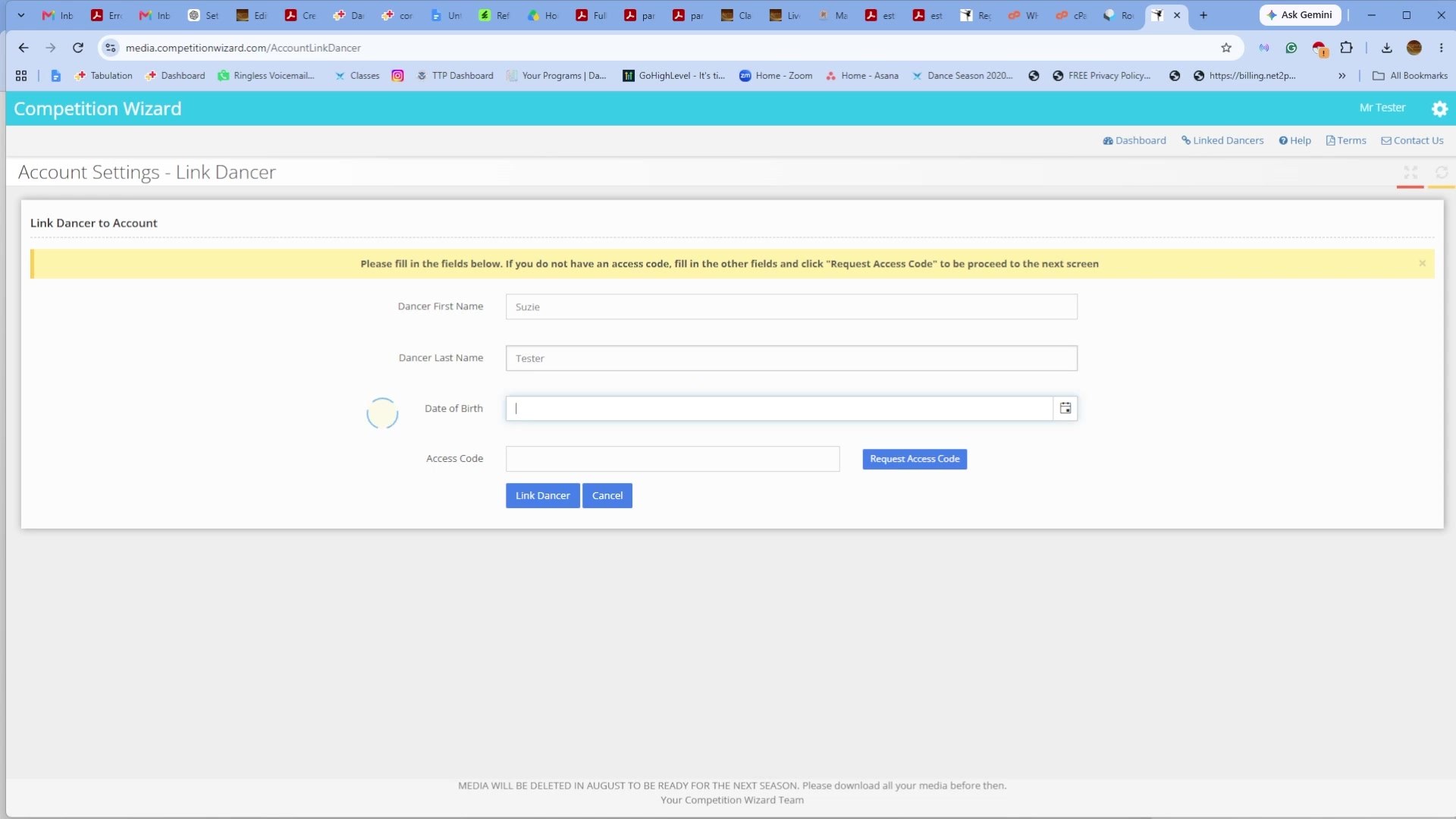
STEP 8 Enter Your Studio Access Code
Enter the Access Code provided by your Studio Director. Double-check the dancer information and code, then select Link Dancer.
Once verified, your dancer appears under Linked Dancers in your Parent Media Account.
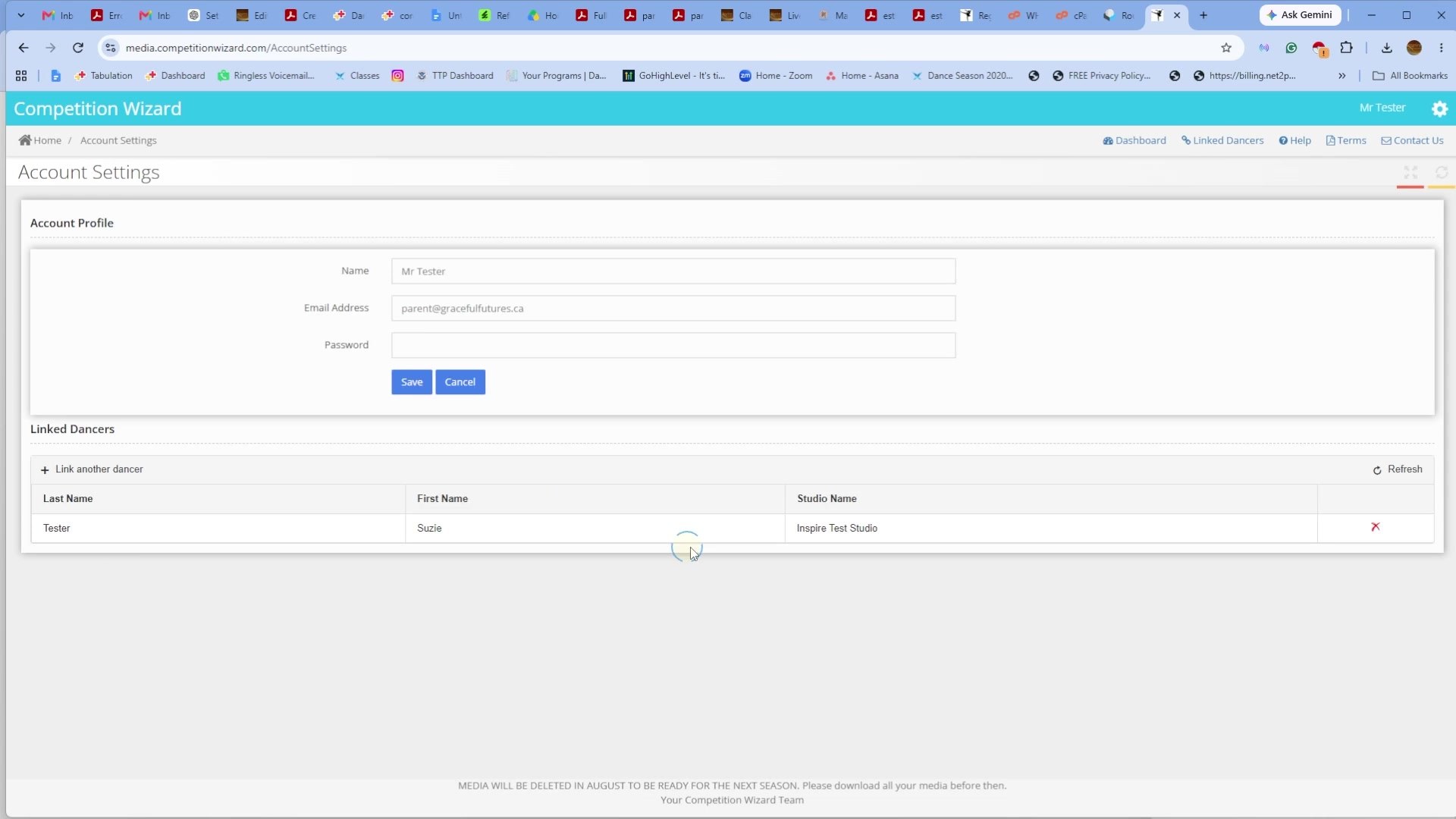
DONE Access Your Dancer's Photos & Videos
After linking your dancer, open the Dashboard gallery at the top right of the screen to see their Inspire photos and videos as media becomes available.
More than one parent or family account? Multiple email addresses can be linked to the same dancer using the Access Code. Each person can sign in to their own Parent Media Account and follow the linking steps.
Help & Privacy
HELP The System Cannot Find My Dancer
Check the spelling, date of birth, spaces, and punctuation against the information submitted by your studio. Also confirm that you are using the correct Studio Access Code.
If you are unsure how your dancer was registered, contact your Studio Director to confirm the information before trying again.
INFO How Dancer Media Access Is Protected
Inspire Dance Challenge takes dancer safety and privacy seriously. Media access is protected through account verification, a studio-issued Access Code, and verification of your dancer's information Using 128 BIT encryption on Microsoft AZURE, data is Protected.